Mar 13
Designing a website with a fluid, large background
Posted by Benedikte Vanderweeën on 13/03/2009
A closer look into the design method to create large background websites.
I was making a mock-up for a new website and started with an illustration. Sometimes an illustration can take a lot of attention so I decided to use a white body content and use the illustration as a background image. So here is my experience with the design and the xhtml + css design.
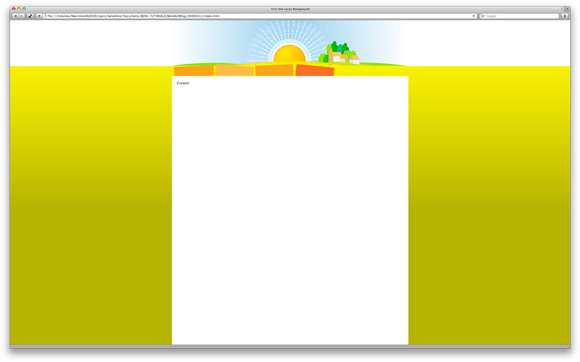
The final template viewed in Safari
Making the mock-up in Photoshop
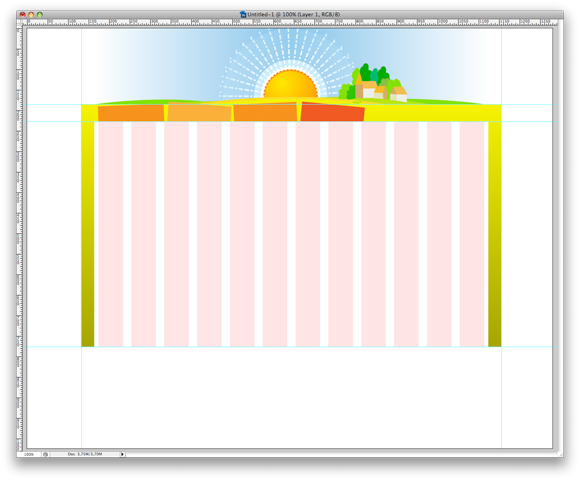
I made a new document with dimensions of 1024 x 768 pixels. I opened my illustration and pasted it in the new document. Set your guides at the edges of the illustration so you know where the illustration starts en ends. I didn't want to crop the illustration but a fluid transition of the picture with the background color of the html page
Divide your mock-up and crop separate images
Once you managed to integrate your illustration, you can start dividing your design in separate images.
In this case, we need to have the header background, the menu background and a background gradient for the overal page. I exported those 3 images as jpg's.
Start coding the xhtml and css
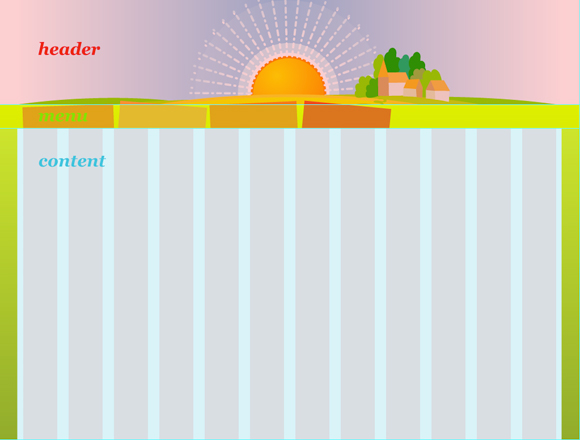
Make a new page with the normal mark-up: a html-tag, a head-tag and a body-tag. Within the body-tag, make 3 different div-sections: a header div, a menu div and a content div
<html>

<head><title></title></head>


<body>

<div id="header"></div>


<div id="menu"></div>


<div id="content">Content</div>


</body>

</html>
In this example, I will put the CSS for the page in the head section, normally the CSS is put in an external file and linked to in the head section.
<style>

html{

margin: 0;

background: #a5a600 url(bg_body.jpg) repeat-x;

}


body{

margin:0 auto;

width:960px;

padding:0;

background:#fff url(boven-bg.jpg)no-repeat center top;

}


#header{

height:185px;

}


#menu{

background:url(menu_bg.jpg)no-repeat center top;

height:42px;

}


#content{


margin:0;

padding:20px;

height:550px;

}

</style>
Test your result in different browser
Before you start the actual content, make sure your template shows up correctly in the different browsers. This template was tested in Safari, Opera and FireFox.
Download the template
You can download the template with the images: Zip Archive

Connect